
Prerequisites#
TLDR; To install and run cijoe, the requirements are:
The diagram below illustrates what the initiator and target systems cover.
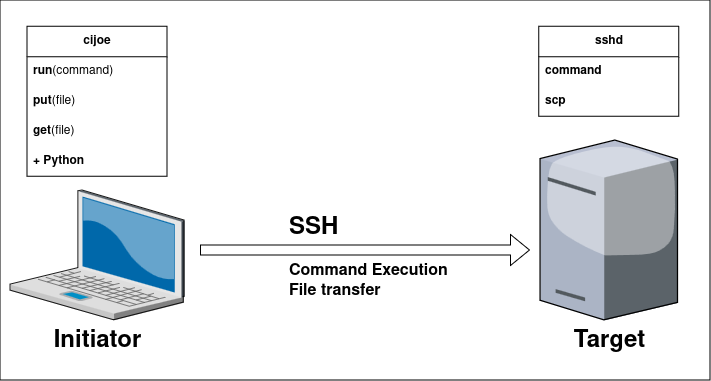
Fig. 2 The “core” agentless functionality of cijoe; run commands and transfer files#
Initiator#
The initiator is the system where the cijoe command-line tool is invoked and the cijoe scripts are being executed, requiring Python along with the necessary Python package dependencies. With the adoption of PEP 668 by Linux distributions, providing a virtual environment for Python packages is now mandatory rather than a recommended practice.
For command-line utilities, pipx offers a convenient way to install tools within a Python virtual environment (venv), ensuring the correct environment variables are set for CLI endpoints to function properly. Therefore, the initiator must meet the following requirements:
It is recommended to install Python and pipx via the package manager of the initiator system. To ensure that pipx is correctly, then run the following:
pipx ensurepath
Note
The initiator uses a pure-Python (3.6+) implementation of the SSHv2 protocol (Paramiko), thus, it does not interfere with your existing SSH setup and does not rely on system crypto/ssl libraries.
After running this, reload your environment by either logging out completely or starting a new shell session. With Python and pipx in place, then install cijoe:
pipx install cijoe --include-deps
Check that it installed correctly, by invoking the cijoe command-line tool:
cijoe --help
You should then see:
usage: cijoe [-h] [--config CONFIG] [--workflow WORKFLOW] [--output OUTPUT]
             [--log-level] [--monitor] [--no-report] [--skip-report]
             [--tag TAG] [--archive] [--produce-report] [--integrity-check]
             [--resources] [--example [EXAMPLE]] [--version]
             [step ...]

options:
  -h, --help            show this help message and exit

workflow:
  Run workflow at '-w', using config at '-c', and output at '-o'

  step                  Given a workflow; one or more workflow steps to run.
                        Else; one or more cijoe Python scripts to run.
                        (default: None)
  --config CONFIG, -c CONFIG
                        Path to the Configuration file. (default: cijoe-
                        config.toml)
  --workflow WORKFLOW, -w WORKFLOW
                        Path to workflow file. (default: cijoe-workflow.yaml)
  --output OUTPUT, -o OUTPUT
                        Path to output directory. (default: /cijoe/docs/cijoe-
                        output)
  --log-level, -l       Increase log-level. Provide '-l' for info and '-ll'
                        for debug. (default: None)
  --monitor, -m         Dump command output to stdout (default: False)
  --no-report, -n       Skip the producing, and opening, a report at the end
                        of the workflow-run (default: False)
  --skip-report, -s     Skip the report opening at the end of the workflow-run
                        (default: True)
  --tag TAG, -t TAG     Tags to identify a workflow-run. This will be prefixed
                        while storing in archive (default: None)

utilities:
  Workflow, and workflow-related utilities

  --archive, -a         Move the output at '-o / --output' to 'cijoe-
                        archive/YYYY-MM-DD_HH:MM:SS (default: False)
  --produce-report, -p  Produce report, and open it, for output at '-o /
                        --output' and exit. (default: None)
  --integrity-check, -i
                        Check integrity of workflow at '-w / --workflow' and
                        exit. (default: False)
  --resources, -r       List collected resources and exit. (default: False)
  --example [EXAMPLE], -e [EXAMPLE]
                        Emits the given example. When no example is given,
                        then it prints a list of available examples. (default:
                        None)
  --version, -v         Print the version number of 'cijoe' and exit.
                        (default: False)
With this in place, then go ahead and check up on your Target configuration.
Target#
The target is where commands are executed via ssh and files are transferred using scp, both of which must be properly installed and configured. As an agentless system, cijoe is minimally intrusive and thus require no additional software installation on the target.
However, cijoe assumes certain conditions in the environment. To simplify specific tasks, this section outlines these assumptions and provides the necessary tweaks.
You can access the target system from the initiator via SSH
E.g. test that you can
ssh foo@exampleYou setup your ssh credentials in the cijoe config file
The ssh credentials on your system is not re-used
This means that the following is available on the target:
sshd (e.g. openssh-server)
This is considered agentless since it is not specific to cijoe and it is generally available, even on Windows.
scp
This comes with the sshd installation
The commands you specify must exist
It is recommended to not use shell-specific commands, as doing so will reduce script portability. Additionally, advanced shell functionality is usually unnecessary since Python capabilities are available on the initiator side where your cijoe script is executing. Therefore, keep commands simple.
If you run a benchmark suite, then install it first. cijoe can help you do so by writing a cijoe script that does the installation of the tool, transfer it with
cijoe.put()andcijoe.run()to invoke installation. Or you can use some other means of provisioning.
Target Setup#
The following subsections describe system setup / configuration of the target system.
user#
These configurations would be considered unsafe had they been for a production environment facing the public internet. However, do keep in mind that the target system will often be a system spun up in an adhoc fashion inside a DevOps infrastructure, cloud-service, or a local lab.
Should you be using a target system where root login over
ssh is not acceptable, then you can use a non-root user
with Passwordless sudo.
Or simply use a non-root user and do not run any commands requiring elevated privileges. In such a scenario, then request permission for your user to certain devices and tools that you need.
sshd login#
The following are a couple of sshd settings that it is recommended that you
apply, the configuration file is usually available at e.g.
/etc/ssh/sshd_config:
PermitRootLogin yes
PasswordAuthentication yes
These options enable, as their names suggest, the ability to log in with the
root user, and to use password authentification. These options are
disabled by default since it can be considered dangerous if for instance the
machine is facing the public internet.
Passwordless sudo#
There are also scenarios, where you want to execute using a non-root user.
In such cases, having sudo capabilities is desirable. For the user named
foo, then invoke visudo and add a line such as:
foo ALL=(ALL) NOPASSWD: ALL
Allowing the foo user to run sudo without being prompted for a
password can be especially useful when automating commands. This avoids the
need for additional tools or scripting workarounds, such as those relying
on expect-like functionality. By bypassing the password prompt,
you simplify the process of running commands in scripts that require elevated
privileges.